How to Use Your Phone Abroad

How to use your phone abroad comes down to one choice made before you leave: your carrier's international plan, a travel eSIM bought online, or Wi-Fi only with cellular data switched off. For most trips the eSIM wins on data and the carrier day pass wins on simplicity, and both beat the fourth option, which is flying with roaming on by accident and finding out later. Whatever you pick, turn on Wi-Fi calling and check that your two factor codes will still reach you.
Carrying a power bank for all of this? Check the rules on it first with our free Can I Bring It? lookup, because battery packs are one of the few items that can only travel in your carry-on.
Updated September 2026. Carrier plans, eSIM providers and network availability change constantly, and the details below describe how the options work rather than what any one company currently offers. Confirm your own plan on your carrier's international page before you fly. Battery rules cited are from the FAA's PackSafe guidance and your airline's own dangerous goods page, both of which can change.
The Three Ways to Get Online, Compared
| Option | How it works | Best for | The catch |
|---|---|---|---|
| Carrier international pass | Your existing plan and number work abroad for a flat daily or monthly fee | Short trips, families on one account, anyone who wants zero setup | Charged per line, per day in most cases, so a long trip adds up fast |
| Travel eSIM | You buy a data plan online, scan a code, and your phone runs a second local profile alongside your home number | Longer trips, heavy data use, multi country itineraries | Data only on most plans, so calls and texts go through apps |
| Local physical SIM | You buy a SIM at the destination, usually at the airport or a phone shop | Long stays, countries with cheap local plans, phones without eSIM | Costs you your home number while it is in the phone, and needs an unlocked handset |
| Wi-Fi only | Cellular data stays off, you use hotel and cafe Wi-Fi | Cruises, very short trips, tight budgets | Useless for maps and rides the moment you step outside |
The combination most experienced travelers use: keep your home number active on the phone for calls and codes, add an eSIM for data, and never turn on cellular data for the home line. You get a working number and cheap data at the same time.
How to Use Your Phone Abroad Without a Surprise Bill
Do this in the airport before takeoff, not after landing. Six steps, ten minutes.
- Check whether your phone is unlocked and eSIM capable. On an iPhone, look for a cellular or eSIM section in Settings. On Android, look under network and internet for the option to add a carrier or SIM. If you plan to use a physical local SIM, call your carrier and confirm the handset is unlocked, since a locked phone rejects a foreign SIM outright.
- Decide and buy before you fly. Download the eSIM or add the carrier pass at home over Wi-Fi. Installing an eSIM requires internet, which is the thing you do not have when you land.
- Turn data roaming off for your home line. This is the single setting that prevents an accidental bill. On both platforms it lives inside the cellular settings for that specific line, and you can leave the line switched on for calls and texts while roaming data stays off.
- Set the eSIM as your data line. Both iOS and Android let you pick which line handles cellular data and which handles calls. Set data to the travel eSIM, calls to your home number.
- Turn on Wi-Fi calling. This lets your home number make and receive calls over any Wi-Fi network as though you were home. It is also the fix for a hotel basement with no signal.
- Download everything offline. Maps, boarding passes, translation packs, transit apps, a couple of playlists, and your booking confirmations as screenshots.
Check the airplane mode trick too. Airplane mode with Wi-Fi manually switched back on is the safest state to travel in: no cellular, no roaming, but Wi-Fi calling and messaging still work whenever you find a network.
What eSIM Actually Means
An eSIM is a SIM card built into the phone that can be programmed with a plan instead of swapped physically. Most phones sold in the last several years support it, and many can hold several profiles at once while running two at a time.
The practical result for travel is this: you keep your home number in slot one for calls, texts and verification codes, and you add a data plan for the destination in slot two. Nothing is removed, nothing is lost, and you can delete the travel profile when you get home.
How to check compatibility in thirty seconds. Dial *#06# on the keypad. If an EID number appears alongside the IMEI, the phone has an eSIM. On iPhone, Settings has an option to add an eSIM. On most recent Android phones, the SIM manager offers to download a SIM.
What to look for in a travel eSIM plan:
- Coverage of every country on the itinerary, or a regional plan if you are crossing borders
- A data amount that matches how you actually travel, using the table below
- Whether it includes a phone number, since most are data only
- Hotspot or tethering allowed, which is what lets one plan cover two people
- How long the plan stays valid, because plans expire on a clock, not on usage
One warning worth repeating: install the eSIM at home, but do not always activate it there. Many plans start their validity clock at first connection, and some start at purchase. Read which one you bought.
How Much Data You Actually Need
Data anxiety causes people to buy far too much or far too little. These are realistic per person daily figures for typical travel use.
| Activity | Rough daily data |
|---|---|
| Maps with offline maps downloaded first | Under 50 MB |
| Maps used live, no offline downloads | 150 to 300 MB |
| Messaging, email, and light browsing | 100 to 200 MB |
| Social media scrolling with autoplay video | 500 MB to well over 1 GB |
| Video calls home, about 30 minutes | 300 to 500 MB |
| Music streaming, a few hours | 200 to 400 MB |
| Streaming a movie on the hotel TV app | 1 to 3 GB, so use the hotel Wi-Fi |
Worked example: a ten day trip for two
One traveler navigates, messages, checks email and posts a few photos. That is roughly 400 MB a day, or about 4 GB over ten days. The second traveler uses maps on the same phone via hotspot and video calls home three times for half an hour each. Add roughly 1.5 GB.
Total: about 5.5 GB. Buy an 8 or 10 GB regional plan and you are comfortable, with room for the day the hotel Wi-Fi dies. Buy 3 GB and you will be rationing maps by day six.
The two settings that halve those numbers: turn off video autoplay in your social apps, and turn off automatic photo backup on cellular so your camera roll uploads only on Wi-Fi. A week of vacation photos syncing over a roaming plan is how most people burn through data without noticing.
Keeping Your Home Number Working
This is where trips go wrong in a way that has nothing to do with data.
Two factor authentication codes. Your bank, your airline, and your email may send verification codes by SMS to your home number. If you swap in a local physical SIM, or if you suspend your home line to save money, those codes stop arriving and you can find yourself locked out of the exact accounts you need while abroad.
Fix it before you leave:
- Switch critical accounts to an authenticator app rather than SMS, since apps work offline
- Save backup codes as a printout in your bag, not only on the phone
- Keep the home line active with roaming data off so SMS still arrives
- Tell your bank you are traveling if it still uses travel notices, and check that it has a number that reaches you
Wi-Fi calling is the other half. With it enabled, your home number rings on hotel Wi-Fi, and calls to numbers back home connect as though you never left. It is free on most US carriers, and it works from anywhere with a decent connection. Turn it on before you leave, since some carriers require a one time setup on the home network.
Apps beat minutes for everything else. WhatsApp is the default in most of Europe, Latin America and much of Asia. Restaurants, tour guides, drivers and hosts will expect it. Install it and verify your number before departure, because verification uses an SMS to your home line.
Battery, Chargers and What Flies Where
A phone plan is useless on a dead battery, and the airline rules on power banks are stricter than people expect.
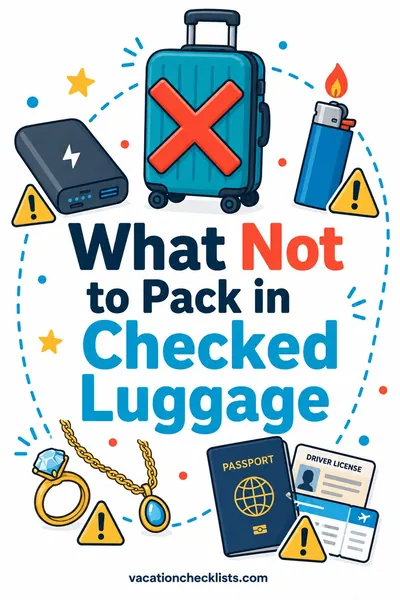
- Power banks and spare lithium batteries go in your carry-on only. They are not allowed in checked bags. This is a safety rule, not an airline preference.
- Capacity limits apply. Batteries up to 100 watt hours are generally fine, and 100 to 160 watt hours usually need airline approval. Most consumer power banks list the watt hour rating on the case.
- Several airlines now restrict using or charging a power bank in flight and require it to be visible rather than in the overhead bin. Check your airline's current page, since this changed on multiple carriers recently.
- Bring the right plug adapter, and check the voltage label on anything with a motor or a heating element.
Look up any specific item, including battery packs, smart luggage and spare camera batteries, with our Can I Bring It? tool. Our travel with electronics guide covers the rest of the tech bag, including which cables to leave home.
Public Wi-Fi Without the Risk
Hotel and cafe networks are fine for maps and messaging. They are a poor place to do anything with your money.
- Prefer your own cellular data over public Wi-Fi for banking or anything involving a password you care about. That is one of the quiet arguments for buying data.
- Use a VPN on public networks if you have one, and know that some countries restrict VPN use, so check before you rely on it.
- Turn off automatic Wi-Fi joining so your phone stops connecting to any network with a familiar name.
- Watch out for lookalike networks in airports and hotel lobbies. If the network name is a slight misspelling of the venue's, ask staff which is real.
- Never enter card details on a network you found by scanning a random QR code. Our common travel scams guide covers the versions of this that actually target travelers.
Cruises, Planes and the Places That Bill Differently
At sea, keep airplane mode on. Once a ship is out of range of land towers, phones connect to the onboard maritime network, which bills at rates far above normal roaming and is not covered by most international passes. Use the ship's Wi-Fi package instead, and only switch cellular back on in port after checking that the country is in your plan.
In the air, inflight Wi-Fi is its own purchase and its own login. Buy or activate it at the seat, not through your roaming plan.
Near borders, phones sometimes latch onto a tower across the line. If your plan does not cover the neighboring country, this is how people get charged for a country they never entered. Locking the phone to a specific carrier in settings solves it if it keeps happening.
If Your Phone Is Lost or Stolen
Set this up before you go, because after the fact you cannot.
- Turn on device tracking and know the web address you would use to find it from someone else's laptop.
- Set a real passcode, six digits or longer, and enable the wipe after failed attempts option if you are comfortable with it.
- Write your carrier's international support number on paper in your bag, so you can suspend the line from a hotel phone.
- Keep offline copies of the essentials somewhere other than the phone: passport photo, insurance policy number, hotel address, and one emergency contact.
- Know your eSIM recovery path. Some providers let you reinstall a profile on a new device, some do not. Save the QR code and the account login.
A stolen phone abroad is a document problem as much as a hardware problem. Our travel document checklist covers the paper backups worth carrying, and the international travel checklist has the wider pre departure sweep.
Small Settings That Make a Big Difference
- Download offline maps for every city, plus the drive between them
- Screenshot your boarding passes and hotel confirmations, since apps fail exactly when signal does
- Add the destination to your world clock so you stop doing time zone math
- Turn on low power mode on long sightseeing days
- Set your phone to the local emergency number, and know that 112 works across Europe and in many other countries, often even without a SIM
- Turn off app auto updates on cellular, which is a silent data eater
- Save one paper copy of the addresses you would need if the battery died at midnight
If jet lag has you doing this setup at 3 a.m. on arrival, our guide on how to beat jet lag will get the schedule fixed faster than the phone will.
Phone Abroad FAQ
Should I use an eSIM or my carrier's international plan?
Use the carrier pass for short trips where simplicity matters more than data, especially if several lines are on one family account and you only need a few days. Use a travel eSIM for longer trips, heavy data use, or multi country routes, since it charges by data rather than by day. Many travelers run both, keeping the home line for calls and the eSIM for data.
How do I avoid roaming charges on vacation?
Turn data roaming off for your home line before takeoff, then get data from an eSIM, a local SIM or Wi-Fi instead. Leaving the line switched on for calls and texts is fine as long as roaming data is off. Also disable automatic photo backup and app updates over cellular, since those are what quietly generate usage.
Will my phone number still work in another country?
Yes, if you keep your home line active and enable Wi-Fi calling, your number rings and texts arrive over any Wi-Fi network. If you replace your physical SIM with a local one, your home number stops working while that SIM is in the phone, which is the main reason travel eSIMs have largely replaced airport SIM shopping.
Can I make calls with a travel eSIM?
Most travel eSIMs are data only, so you call through apps such as WhatsApp, FaceTime or a messaging app rather than dialing directly. Some plans do include a local number and voice minutes. If you need to phone restaurants, taxis or a landline abroad, check for that feature specifically before buying.
How much data do I need for a week abroad?
For maps, messaging, email and moderate social media, plan on roughly 300 to 500 MB per person per day, so about 3 to 5 GB for a week. Download offline maps first and you can cut that in half. If you plan to video call home or upload photos daily, double it and buy the larger plan.
Is hotel Wi-Fi safe to use?
It is fine for maps, messaging and browsing, and it is a poor choice for banking or anything with a password you cannot afford to lose. Use your own cellular data or a VPN for sensitive tasks, turn off automatic network joining, and confirm the exact network name with staff rather than trusting the first familiar looking option.
Can I bring a power bank on a plane?
Yes, in your carry-on only. Power banks and spare lithium batteries are prohibited in checked baggage, capacity limits apply, and several airlines have recently added rules about keeping them accessible and not charging them in flight. Check the exact item and your airline's current policy before you pack.
What should I do about two factor codes while traveling?
Move critical accounts to an authenticator app before you leave, print your backup codes, and keep your home line active so SMS codes still arrive over Wi-Fi calling. Losing access to your bank because the verification text went to a number you disconnected is a far bigger problem abroad than at home.
The Two Minute Version
Buy your data before takeoff. Turn roaming data off for the home line, turn Wi-Fi calling on, and set the travel eSIM as your data line. Download offline maps and screenshot the bookings. Move your verification codes to an app so your bank still lets you in. Then keep the power bank in your carry-on, where the rules require it.
Get the rest of the tech pouch right with our Can I Bring It? lookup and build the full trip list with the packing list generator.